
How recipient filtering works
Each filter you add is set to one of two modes:
- Block: recipients who match the filter will not receive messages, even if they are returned for the supporter's address.
- Allow: only recipients who match the filter will receive messages, as long as they are returned for the supporter's address.
You can combine Block and Allow filters on the same campaign. Filters apply globally across all message variants in your campaign.
Adding a filter
- On your campaign's Recipients step, add the datasets you want to target.
- In the Recipient filtering box, click + Add filter.
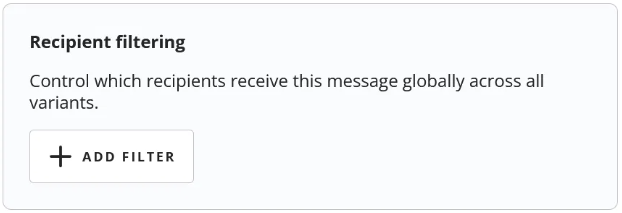
- In the Filter recipients panel, choose Block or Allow.
- Under Filter type, choose what you want to filter by: Recipient name, Party, Position or Jurisdiction.
- Use the search field below to select one or more values. Each selection appears as a tag in the field. Click the x on a tag to remove it.
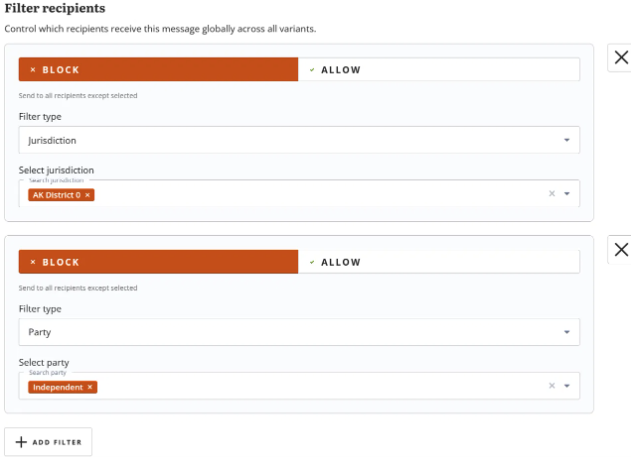
- To add another filter, click + Add filter again. To remove a filter, click the X to the right of it.
- Click Apply filters, then save your campaign.
Filter types
- Recipient name: select one or more specific recipients by name.
- Party: filter by the recipient's political party.
- Position: filter by the recipient's role. The available positions depend on your dataset. For example, a municipal dataset might include "Mayor" and "Council Member."
- Jurisdiction: filter by the area the recipient represents. The available jurisdictions depend on your dataset. For example, a municipal dataset lists city wards, while the U.S. House of Representatives dataset lists each state's congressional districts.
When you select more than one value in a single filter, a recipient only needs to match one of them. For example, an Allow filter for Party with both "Democrat" and "Independent" selected will send messages to representatives from either party.
Example: blocking by state and party
An example setup is if your campaign targets the U.S. House of Representatives, and you don't want messages going to Alaska's representative or to any Independent representatives. You would set up two Block filters:
- Filter type: Jurisdiction, with AK District 0 selected. (Alaska has a single at-large seat, listed as District 0. For states with multiple districts, select each district you want to block.)
- Filter type: Party, with Independent selected.
Supporters anywhere else will still message their representative as usual, unless that representative is an Independent.
Example: allowing only certain positions
If your campaign uses a municipal dataset and you only want messages to reach the mayor, set up an Allow filter with Filter type set to Position and Mayor selected. Council members returned for a supporter's address will not receive the message. If no mayor is returned for a supporter's address, their message goes to your fallback target.
Using multiple filters together
[CONFIRM: mixed Block/Allow logic below]
When you add more than one filter, a recipient must match every Allow filter and none of the Block filters to receive the message. Each filter you add narrows the list further.
For example, if you add an Allow filter for Party "Democrat" and a Block filter for Jurisdiction "CA District 12," messages will go to every Democratic representative returned for the supporter's address except the representative for CA-12.
Viewing and editing your filters
Once your filters are applied, the Recipient filtering box on the Recipients step shows a summary of each one, such as "Blocking 1 Party" or "Blocking 1 Jurisdiction."
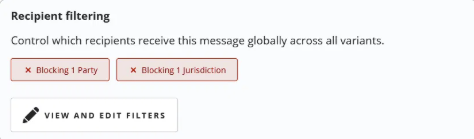
To change or remove filters, click View and edit filters. Remember to click Apply filters and save your campaign after making changes.
A few things to know
- Filters only narrow the list. Recipient filtering never adds recipients. In Allow mode, a selected recipient only receives a message if they are returned for the supporter's address.
- Each filter is Block or Allow. You choose the mode for each filter individually, and you can combine both on the same campaign.
- Values within a filter broaden it; extra filters narrow the list. A recipient needs to match only one value within a filter, but must match all of your Allow filters and none of your Block filters.
- Filters apply to all variants. You can't set different filters for different message variants.
- Options depend on your datasets. The positions and jurisdictions available to filter by change based on the datasets you've added.
- If filters leave no recipients, the message goes to your fallback target. When filtering removes every recipient returned for a supporter's address, the supporter won't see any recipients, and their message is sent to your campaign's fallback target instead.