
This campaign type expands New/Mode’s traditional advocacy actions (petition, email, call, and letter) into the social sphere, helping supporters create visible public pressure while giving you measurable impact across platforms and recipients.
Supported social networks
Supporters can take action on:
-
Facebook
-
X (Twitter)
-
Bluesky
-
Instagram
-
Threads
Supporters can target representatives using tagging or hashtags, optimizing visibility on each platform.
Our ‘Dual Notification’ system combines public posts with direct email alerts so every action drives pressure.
Creating a Social Media Campaign
From the campaign creation screen, select Social Media as the campaign type. Once selected, the campaign follows the standard New/Mode flow:
Recipients → Message → Design → Review
1. Add Recipients
You can add recipients in two ways:
-
Add individual recipients
-
Enter name and contact details
-
Add social media handles for supported platforms (optional but recommended)
-
-
Upload recipients via CSV
Providing accurate social handles ensures posts tag recipients directly whenever possible.
Learn how the social media advovacy campaign handles different recipients in this article.
2. Craft Post Variants
The Campaign Post step lets you configure how posts appear across networks.
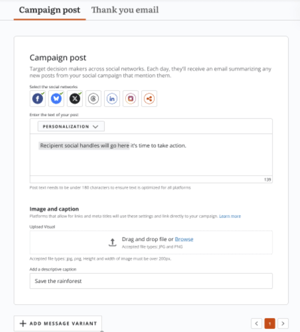
You can:
-
Select which social networks to support
-
Write the post text (up to 225 characters)
- While Twitter (X) enforces a 280 character limit, space is reserved for hashtags and @handles
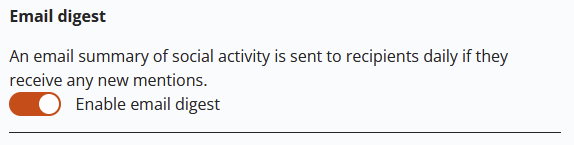
- Toggle the "notification email" on or off. This email notifies the recipients of their mentions on a daily basis. We recommend keeping this on to boost your impact.
-
Upload images (required for Instagram and TikTok)
- The descriptive caption is a short piece of text that appears under the image on certain social networks
-
Create multiple post variants for different platforms. Each variant can have its own text, visuals, and selected networks.
You can also generate post variants using AI assistance, then edit or regenerate them before publishing.
Each platform uses its own post variant. Switching between social media platforms may alter the prefilled post text, media, or caption.
3. Design and Preview
The Design step shows a live preview of the supporter experience.
You can:
-
Choose a one- or two-column layout
-
Preview how social posts appear to supporters
-
Review example tagging and formatting
All previews use sample content and handles for visual reference. Design settings save automatically.
4. Launch your campaign!
New/Mode recommends embedding the form and running test submissions before campaign launch, to see how the form appears on desktop and mobile.